Breaking News
Loading...

Recent Post

Showing posts sorted by relevance for query Symbian. Sort by date Show all posts
Tuesday, 4 February 2014
Hike Messenger - Best Cross Platform Messenger 2014

Hike Messenger - Best Cross Platform Messenger 2014

Today, I'm gonna recommend you the best cross platform mobile messaging app that we think you should check out.  It is a better way to communicate with all your friends who use instant messaging apps on mobile phone platforms like Android, iOS, BlackBerry, Windows or even on your old Nokia's Symbian series mobile phones. The most important thing is that, it is the first Indian Messenger Made With Love In India.


Hike - Best Cross Platform Messenger
Hike Messenger is a very easy and convenient way to communicate with your friends and family either over WiFi or over the cellular internet connection. It focuses strictly on messaging. It is a message option with support for push notifications, group conversations, stickers, smileys and more, that your friends are most likely already tied into.

Must Read - Get Daily Rs. 200 Free Recharge | Hike Messenger


As compared to Whatsapp messenger, with over 2 million registered users, you may find that more peoples are using it than you think. Hike is also available for a broad number of platforms including Android, iPhone, BlackBerry, Windows Phone, Nokia S40, and Symbian. Hike messenger also supports unlimited group messaging as well as unlimited audio, video, and photos sharing. It is also got a pretty nice interface with changable themes, which is an added bonus.


It is a open source instant messaging application and is very similar to Whatsapp, BBM, Kik but with so much more characters, lots of great smiles, featured smiles, awesome stickers and advanced features. It is a beautiful yet simple application. Great way to keep in touch with close friends and family members. The best thing is that, it gives free rewards for reffering your friends to hike! This reward can be used for free Topup Recharge. Think of hike messenger as it is made for the new generation.

Links To Download Hike Messenger For Android, iOS, BB, Windows and Symbian- 
Click Here To Expland Download Links


Flash Guide Nokia 5233 To Install LinsPirat Belle

Flash Guide Nokia 5233 To Install LinsPirat Belle

In my last post Symbian Belle Firmware For Nokia 5233, I have explained about an awesome firmware LinsPirat for Nokia 5233 mobile which works on Symbian OS. In this post I'm giving a complete installation tutorial to install LinsPirat on your Nokia 5233 handset. Here are some snapshot of the CFW.


Before Starting, Download and install (if this or latest framework is already installed in your computer, no need to download this file) .NET Framework 2.0

Installation Files For Nokia 5233 RM-625 -

    -Nokia 5233 RM625 Download (77.44 MB)
      -RM-625 V51.1.002 New Core by Binh24 Download (26.06 MB)


      Download Flashing Tools
      Download - Jaf Imulator  (Contains jaf setup.exe , Pkey Emulator)
      Install jaf setup.exe.

      Click to start download -Jaf_nok4models.rar (21 KB Only)
      Extract file and copy jaf_nok4models.ini to folder C:\Program Files\ODEON\JAF (Replace original file)
      (Note - This file is very important so please don't ignor this file. This file will show up "Nokia 5233" option in Jaf Imulator)

      You have to install Nokia PC Suite. If you dont have Download from Here.

      Flashing with JAF
      1 - Create directory C:\Program Files\Nokia\Pheonix\Products\RM-625

      2 - Extract file LinsPirat LTS Rev2.1 RM625 with Plus!.7z

      3 - Copy RM625_51.1.002_000_001_U001.uda.fpsx and RM-625_51.1.002_prd.rofs2.V21 and paste into  C:\Program Files\Nokia\Pheonix\Products\RM-625

      4 - Extract RM-625 V51.1.002 New Core by Binh24.rar

      5 - Copy all 4 files -
      -RM-625_51.1.002_prd.core.C0r
      -RM625_0597963_51.1.002_001.dcp
      -RM625_0597963_51.1.002_001.vpl
      -RM625_0597963_51.1.002_001_signature.bin
      Paste these files in folder C:\Program Files\Nokia\Pheonix\Products\RM-625.

      6 - Now, copy all the files in folder C:\Program Files\Nokia\Pheonix\Products\RM-625 and paste them on Desktop (Create new folder on desktop and paste them into it)

      7 - Connect your phone with PC Suite Mode.

      8 - Now go to the folder where you extracted JAF EMULATOR. Open jaf pkey emulator.exe in Compatibility Mode. (To open this file in compatibility mode, right click on it, click on compatibility tab, and select Windows xp service pack 3 OR Windows xp service pack 2)


      9 - Now click GO. (Dont make any changes.) 


      10 - Then you will see Error: "BOX DRIVER NOT INSTALLED" . Just click OK (Don't panic).


      11 - Now click on BB5 tab and untick CRT 308 and tick following - 
          *Manual Flash     *Dead USB      *Use INI (when you click USE INI, a dialog box will apear. just select NOKIA 5233 and click OK)


      12 - Follow these steps:
      -Click MCU and select the RM-625_51.1.002_prd.core.C0r file  -Click PPM and select file RM-625_51.1.002_prd.rofs2.V21  -Click APE Variant and select file RM625_51.1.002_000_001_U001.uda.fpsx -IGNOR CNT

      13 - Hard Reset your mobile.


      14 - Now TURN OFF your phone !!! Then click FLASH button. After that press and hold POWER button (button on mobile to switch it on/off) for 1 seconds (don't hold more then 1 second! you are NOT switching on your mobile) and JAF now will start flashing.
      If JAF dont detect your phone then try again and again until it is detected . 


      15 - JAF will complete installation within 5 minutes. After completing flashing your phone will restart. 
      Final Screen After Installation Completes.
      Note -
      1. You cant downgrade from new version to old. It will break your phone.
      2. If your phone breaked (dead) while flashing then flash again.
      FEEL FREE TO COMMENT IF YOU HAVE ANY PROBLEM :D
      Tuesday, 11 February 2014
      Use Mobile Phone Camera As A USB Webcam

      Use Mobile Phone Camera As A USB Webcam

      We know that many social networking websites such as "Facebook" and "Google Plus" have Video Chatting feature, & we know that to start video chatting we need a Webcam. Sometimes, webcam is not available and we can't start video chat with our friends. But after reading this article you can use your mobile phone camera as USB or Bluetooth Webcam !!!


      Yes! You Can Use Your Mobile Camera As A Web Camera For Facebook, Yahoo, Skype Or Any Other Video Chatting Supported Websites. We are going to use a software "Mobiola"

      Also Read -
      Get Free Unlimited Mobile Recharge And Send Free SMS
      How To Download & Install WhatsApp On PC Or Laptop
      Install New Android 4.3 Camera and Gallery On Non Jelly Bean Phones


      Requirements To Make Your Mobile Phone Camera As A USB Webcam -

      1 - A Cell Phone with Camera.

      2 - A USB Data Cable or Bluetooth Dongle to create connectivity between your Computer and your Cell Phone.

      3 - And A Computer or Laptop.

      You can use this trick with any kind of mobile phone such as Nokia, iPhone,Blackberry, Windows Mobile Phones, Symbian S60, Android.


      First Of All, Trick For Nokia Java, Symbian S60, iPhone, Blackberry And Windows Mobile Phones -

      Step 1 - Go to this link CLICK HERE and click on "Download" and select your mobile phone to start downloading the app.

      Step 2 - Those who are using Java phones like Samsung, Sony Ericsson, Nokia 5300 ,Nokia 3500 etc. download this application from this link - CLICK HERE

      Step 3 - Mobiola consists 2 parts. one is a Client Part and other one is a Server Part.

      Step 4 - Install Server Part on your PC (.exe file) and install Client Part on your Mobile Phone (ie. .jar and .sis etc).

      Step 5 - Run Mobiola Webcam on your Computer.

      Step 6 - Run Mobiola Webcam on your Mobile Phone.

      Step 7 - Connect your Mobile Phone to your PC by using a USB Data Cable or Bluetooth Dongle.

      Step 8 - Now in your Cell Phone, go to Mobiola app and then go to Options, then Connect.

      Step 9 - After that, select Bluetooth or USB (Whatever is connected between your Mobile Phone and PC) to create a connection...

      Step 10 - After authentication all work is done.

      Also Read -

        If You Are Using An Android Phone Then Follow These Steps To Turn Your Mobile Phone As A Webcam -

        Step 1 - Go to Android Market or Google Play Store on your Android Phone and search for A Application Named "USB Webcam".

        Step 2 - Download and install that application on your Android Phone and turn on USB debugging by going to Settings--> Application--> Development--> USB Debugging.

        Step 3 - If you are using Windows on your Computer then download Server for USB webcam from here - Click Here To Download

        Step 4 - If you are using linux on your computer, then download Server from Here - Click Here To Download

        Step 5 - Install Server on your Computer.

        Step 6 - This is a second last step. Connect your Cell Phone via USB Cable to your Computer.

        Click Here To Expand Last Step -

        Step 7 - After that, double click to open Server from your PC, and open Client app from your Cell Phone and Create A Connection.

        That's all... Now you can use your mobile phone camera as USB Webcam!
        Tuesday, 4 February 2014
        Symbian Belle Firmware For Nokia 5233

        Symbian Belle Firmware For Nokia 5233

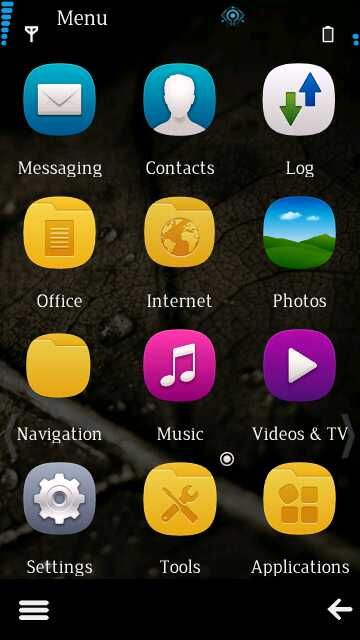
        The Craze of Mobile Phone Bricking is on the GO! Peoples are bricking their phones with suitable custom firmwares to give their homescreen a stylish new look. Here’s presenting, an Amazing Symbian Belle Custom Firmware for Nokia 5233 – All RMs of combined styles – Anna & Belle – AnnaBelle, named LinsPirat LTSrev2 byTinTinBoss.
        This new custom firmware is compatible with all the versions of the mentioned phone models and comes with Anna Icon Sets, New Theme Effects, Super Fast Sensor, Kinetic Scrolling and much more.  This is not completely Belle Firmware, but this cfw is much more awesome than Belle when you use the Bonus LinsPirat HD Wallpapers. Check out the features and screenshots after the jump!


        Also Read -


        First of all, I would like to say that, this cfw is Simply Awesome and Best cfw I’ve ever used!  If you are a Graphics Freak and Love your Phone to look pretty, then this cfw is what you need.

        Quote from TinTinBoss  

        "So, here it is, I want to share you “what I had in mind while developing this” 
        “LinsPirat LTS” is unlike “LinsPirat v1.0″ – a more professional and sober looking OS. You can say – a fat-less LinsPirat  . I tried to achieve a state where you feel different using your very known Nokia Device. Don’t know if I failed or achieved tiny bit of success.As with LinsPirat v1.0 Designed by me all the way (Surely grabbing ideas from here and there and combining my tastes). Own resources and vector arts. With LinsPirat LTS feel a more sophisticated and eye friendly UI.

        Important Notes - 

        • You can't get your original operating system back. 
        • Use this tutorial if you have NOKIA 5233 with RM-625 and firmware version 51.1.002
        • Do this on your own. 
        • This firmware is tested on thousand of mobiles and working fine. Don't make any mistakes while installation. 
        • If you have firmware newer than. 


        Sneak Peak -

        • Huge Performance Upgrade.
        • QT Integrated.
        • LinsPirat Music Theme Reworked.
        • LinsPirat Plus Pack added with download. (contains All LinsPirat Themes and Wallpapers + Working latest Ovi Store)
        • New Never seen before Sparkling swipe to answer and new Swipe to Unlock.
        • Camera Hardware key fixed.
        • Smoother Kinetic Srolling.


        What's New? Features -

        • Fast and Colorful (60MB+ RAM at Start Up , Loads of color in LinsPirat theme).
        • NEW! LinsPirat LTS (Music) Theme! 
        • NEW! LinsPirat LTS (Music) Walls. 
        • NEW! LinsPirat LTS theme. 
        • NEW! 5 LinsPirat Ringers (Personally edited from fav tunes). 
        • LinsPirat v1 theme Revamped (will be available for Auto Installer). 
        • New! 6+2 LinsPirat HD walls. 
        • Music Player Supporting Karaoke with any .lrc file (15.2 default). 
        • NEW! — Windows Phone 7 Giant font! (Have a plan to release giant version in future.) 
        • New and reworked ANIMATED LinsPirat LTS Boot Screen (mbm file for smooth animation). 
        • LinsPirat v1 Theme included – (Colorful and with Anna POP Icons) 
        • 5 Extra equalizer presets. 
        • Glossy Swipe to unlock. 
        • Common Good Apps cooked within CFW. 
        • ROM Patcher with proven patches. 
        • Personal Server Links. 
        • Effects : Android Theme effects by nhelske. 

        Also Read -

        Trace Any Mobile Number With Name And Location


        Screen Shots -


        (Click on image to view full size)


        N97 Mini V30 Change Logs -

        • New, faster version of the Web Browser, including web search integrated into the web address field, and support for multiple windows.
        • New, Quicker and Easier Chat and Mail Applications.
        • Updated Music player with folder playlists and lyrics support.
        • New Imotions and smileys in text and multimedia messages.
        • Performance and usability improvements.
        • Ovi Contacts removed.
        • Smart Dialer.
        • Fully hacked CFW.


        Also Read - 


        Installation Files -

        • Nokia 5233 RM625 Download (77.44 MB)
        • RM-625 V51.1.002 New Core by Binh24 Download (26.06 MB)
        If you Hard Reset or Factory set your device, please flash your device again to get the 5 New Equalizer Preset.


        Installation Notes -


        • Use provided UDA (Otherwise you wont get 5 equalizer presets).
        • Use v50 core for RM-625 by binh24.
        • Format Memory Card From within phone before you give it a go.
        • Restart Device after flash.

        Saturday, 1 March 2014
        Hide Last Seen Time in WhatsApp [How To]

        Hide Last Seen Time in WhatsApp [How To]

        WhatsApp Messenger is one of the vital application for any Smartphone and many individuals are using this application regularly. This application permits us to send messages to our friends and relatives for free, regardless of where they are! Indeed we can send different Photos, Audios, Videos and Location expediently without any hassle. Whatsapp Messenger deals with basic simple methodology, simply update your contact list with particular contacts and you are ready to connect and chat with them.

        Hide Last Seen Time in WhatsApp [How To]

        Generally, the Whatsapp Messenger has two status – Online and Last Seen. At present, if you are using Whatsapp Messenger then your status will change to 'Online' and as you leave the application, your status will change to "Last Seen at Time". In view of the specified status, one can undoubtedly keep an eye on your presence, especially your girlfriend or boyfriend. Some of the time, it may happen that you have just seen the recieved messages and you are unable to answer them over because of some reason (like network problem) then indirectly it would look like you are ignoring them.

        In this way, to avoid this confusion and numerous different issues, today we have brought a wonderful Whatsapp trick, "How To Hide 'Last Seen Time; in Whatsapp Messenger" for any Smartphone. By using this trick, one can hide Last Seen Time in WhatsApp and maintain their privacy. So, take a look at this guide to hide Last Seen Time in WhatsApp.

        Recommended - Hike Messenger - Best Cross Platform Messenger 2014


        Steps To Hide Last Seen Time in WhatsApp


        Step 1 - Download Latest Version of Whatsapp Messenger from Google Play Store (For Android) or from official website of operating system for your device. Don't ignore this step as you cannot hide last seen time with older version of WhatsApp
        Download Links - Android | Windows Phone | iPhone | BlackBerry | Symbian

        Step 2 - Install it on your Smartphone (Replace older version).

        Step 3 - Launch Whatsapp Messenger from the application drawer.

        Step 4 - Now, click on the Menu button on your device.

        Step 5 - From the open sub-menu, select Settings option.

        How To Hide Last Seen Time in WhatsApp

        Step 6 - From the open rundown, tap on Account option.

        Hide Last Seen Time in WhatsApp
        Step 7 - Again, you willl get a list of options and from that point, you need to tap on Privacy option.

        Hide Last Seen Time in WhatsApp Privacy

        Step 8 - Finally, you will get options to hide Last Seen On WhatsApp. Tap on Last Seen option.

        How To Hide Last Seen Time in WhatsApp
        Step 9 - Change the last seen option to Nobody.

        How To Hide Last Seen Time in WhatsApp

        That's It! you have successfully hidden your Last Seen Time from your friends & others!

        Above is the most straightforward and easiest way to Hide Last Seen Time in Whatsapp on any mobile device. Presently, you can without a doubt hide your identity from unknown and bothering contacts. If you have any other trick to Hide Last Seen Times in Whatsapp then do let us know via comment area. Keep in mind to Share this trick to your Facebook Friends! Enjoy!
        Tuesday, 11 February 2014
        Boot Your Android Device Into Safe Mode [How To]

        Boot Your Android Device Into Safe Mode [How To]

        Android is a relatively most stable mobile operating system as compared to Windows, Symbian or iOS. But every now and then, performance issues arise. Safe Mode is a great tool by which you can use to troubleshoot these issues. Safe mode boots your phone running only with the default apps that came with the phone, means no third party apps. So, if your phone runs without an issue when you’re in safe mode then it’s a pretty good bet that the problem is not system related and can be solved by uninstalling a third party app you downloaded.

        Safe Mode In Android

        Unfortunately, not all the phones have the same method to enter into safe mode. Most Jelly Bean devices use the method below. But some of the devices with older versions of Android and some newer devices like Galaxy S 4 and HTC One use the alternate method to boot into Safe Mode.

        Read this article for related tricks - TOP 10 USEFUL ANDROID HIDDEN TIPS AND TRICKS

        Steps To Enter Into Safe Mode -

        1 - Press and hold down the physical Power button on your device.
        2 - Long press the “Power Off” option that appears on the screen.
        Step 2 To Start Safe Mode In Android

        3 - A dialog box will apead asking you if you want to reboot your device into Safe mode. Tap OK. (Note - If the box doesn’t appears, go on to the alternate method. Alternate Method will be posted soon.)
        Step 3 To Start Safe Mode In Android


        4 - When the phone reboots, you should see a “Safe Mode” watermark at the bottom left side of the screen, to let you know that you are in safe mode.
        ScreenShot Of Safe Mode In Android


        You can’t use third party apps in safe mode. You can uninstall them if they are having any problem. So if your phone is giving you problems as bad as freezing or not letting you to uninstall installed apps, you can uninstall the problem app or apps in safe mode. In addition, if you need to, you can backup your data or factory reset your android device in safe mode .

        To exit safe mode, you just Restart your device as you normally would.
        Let me know if you have any questions!
        Sunday, 6 July 2014
        Call Blocker - Best Call & SMS Blocker App For Android

        Call Blocker - Best Call & SMS Blocker App For Android

        Hello readers! In my last post I explained  How To Block Incoming Calls And SMS From Any Number. In that post we used Android's built-in Reject List feature. Here in this post we will learn how to block unwanted calls. I will explain about an Android application Call Blocker which is a free app for Android. It helps us to block incoming call form a number in Android. I will also help in blocking spam texts. It is a top and best application in the list of free apps to block texts and incoming calls in android phone. I am using it from last 4 months and I think it is a best call blocker for android. It also offers premium version which contains some great additional features.

        Contact application of Android allows you to add any number to reject list of incoming calls. But we cannot depend in the in-built ability of Android. For the advanced users who want advanced control for incoming calls and SMS, there are many apps available on the Google Play Store which controls your call blocking need. Here is an explaination of one such application is which is called Call Blocker. It is developed by NQ Mobile Security. It not only block calls but also blocks unwanted SMS.

        Call Blocker is a free application which has enough amazing features to satisfy all your needs regarding call blocking. Here is a quick list of features given by Call Blocker app.

        Call Blocker - Best Spammer Call & SMS Messages Blocker App For Android 2014


        Features Of Free Version

        • Block any unwanted calls (reject, forward, or reply with an automatically generated SMS).
        • Block spam SMS (accept SMS from phonebook only or completely block blacklist).
        • Back up your contacts to the server.
        • Transfer data from old to new phone (For Symbian, Android, or BlackBerry devices)
        • Quick and easy way to delete the call history and delete SMS between you and any contacts permanently to protect private data.
        • Auto detect of one-ring malicious spamming calls.

        The features listed above are available only on the free version. But the problem is it includes an advertise bar in application. There is also a Premium version of this application available with some additional features, but it costs $1.99 for one month, $6.99 for six months, and $12.99 for one year. Here is a list some of some additional premium features.

        Additional Features Of Premium Version

        • Automatically move your private contacts messages and call logs to a Private Space so that they will not appear in the phone's regular SMS and call logs.
        • Keep your secrets by hiding the icon as displayed on the main screen, so that no one knows you are using Private Space.
        • Protect your Real space by creating one or more fake spaces. If anyone wants your password, show her or him the fake one!
        • Advertise bar will be removed (Ad-free).

        Now using this features, we can block any spam callers or your irritating friends! Let us proceed to installation of this app.


        Installation

        1 - First of all, download Call Blocker application from Google Play Store. Download link is available at the bottom of this page. Just go to that link and dowload Call Blocker for free.

        2 - Once it is downloaded and installed, you will find the launcher icon  for this app in you application drawer and on the home screen of your smartphone. Tap that icon to open Call Blocker.

        Now there you can add any number to blacklist. Add contacts or numbers that you want to block and you are done! You are now free to live your life and Call Blocker will take care of spammers. Give it a try and let me know in comment section if your liked it or not.


        Tuesday, 18 February 2014
        Best 30 Useful Secret Codes For Your Smartphone

        Best 30 Useful Secret Codes For Your Smartphone

        In this Post you will learn about several Android Secret Codes. You often need to know many things about your smartphones. You always need to know information about hardware and software about your device. These "Android Secret Codes" will help you know everything about your smartphone.

        In order to use all of these Android Secret Codes, you just need to simply open the Dialer of your android smartphone and type the secret code listed below.

        If you are unsure about the use of any of the codes given below, better NOT to execute it. Most of the codes are meant for only Advanced users. So, if you would like to try it, better you keep a complete backup copy of your data on your device. We are NOT responsible for any of the data loss or damage to your device by using these codes. Please read Disclaimer before using these codes.

        Best Useful Secret Codes For Your Smartphone
        Android Secret Codes

        Here is the complete list of best Android Secret Codes for your Smartphone -

        1 - Phone Information, Usage Statistics, WiFi Information and Battery Information – *#*#4636#*#*

        2 - IMEI Number – *#06#

        3 - Enter Service Menu On Newer Phones – *#0*#

        4 - Complete Software and Hardware Info – *#12580*369#

        5 - Backup All Media Files – *#*#273282*255*663282*#*#*

        6 - Wireless LAN Test – *#*#232339#*#*

        7 - Detailed Camera Information – *#*#34971539#*#*

        8 - Vibration Test – *#*#0842#*#*

        9 - Test the Touchscreen – *#*#2664#*#*

        10 - Enable Test Mode for Service – *#*#197328640#*#*

        11 - Back-light Test – *#*#0842#*#*

        12 - FTA Software Version – *#*#1111#*#*

        13 - FTA Hardware Version – *#*#2222#*#*

        14 - Diagnostic Configuration – *#9090#

        15 - USB Logging Control – *#872564#

        16 - System Dump Mode – *#9900#

        17 - Reset the Data Partition to Factory State – *#*#7780#*#*

        18 - View Phone Lock Status – *#7465625#

        19 - Format Your Device To Factory State(This will delete everything on your phone) – *2767*3855#

        20 - Restting your phone to factory state-Only deletes application data and applications - *#*#7780#*#*

        21 - Hidden Service Menu For Motorola Droid – ##7764726

        22 - Change the Power Button Behavior (Enables Direct Poweroff Once The Code Enabled) - *#*#7594#*#*

        23 - A Quick Backup to All Your Media Files - *#*#273283*255*663282*#*#*

        24 - To Find Ram Version - *#*#3264#*#*

        25 - Audio Test - *#*#0673#*#* OR *#*#0289#*#*

        26 - Bluetooth Test - *#*#232331#*#*

        27 - PDA and Phone Firmware Info - *#*#1234#*#*

        28 - Quick GPS Test - *#*#1472365#*#*

        29 - A Different Type Of GPS Test - *#*#1575#*#*

        30 - Hidden Service Menu For Motorola Droid – ##7764726

        These were the best of 30 Android Secret Codes for your Smartphone. Use them and enjoy playing with your android smartphone. Please do tell us which one you liked the most below in the comment section and keep visiting for more tricks about Android, iPhoneWindows Mobile, Symbian, BlackBerry!
        Quick Message
        Press Esc to close
        Copyright © 2014 Mobile Tricks | Designed and Bloggerised By Pradeep Jadhav